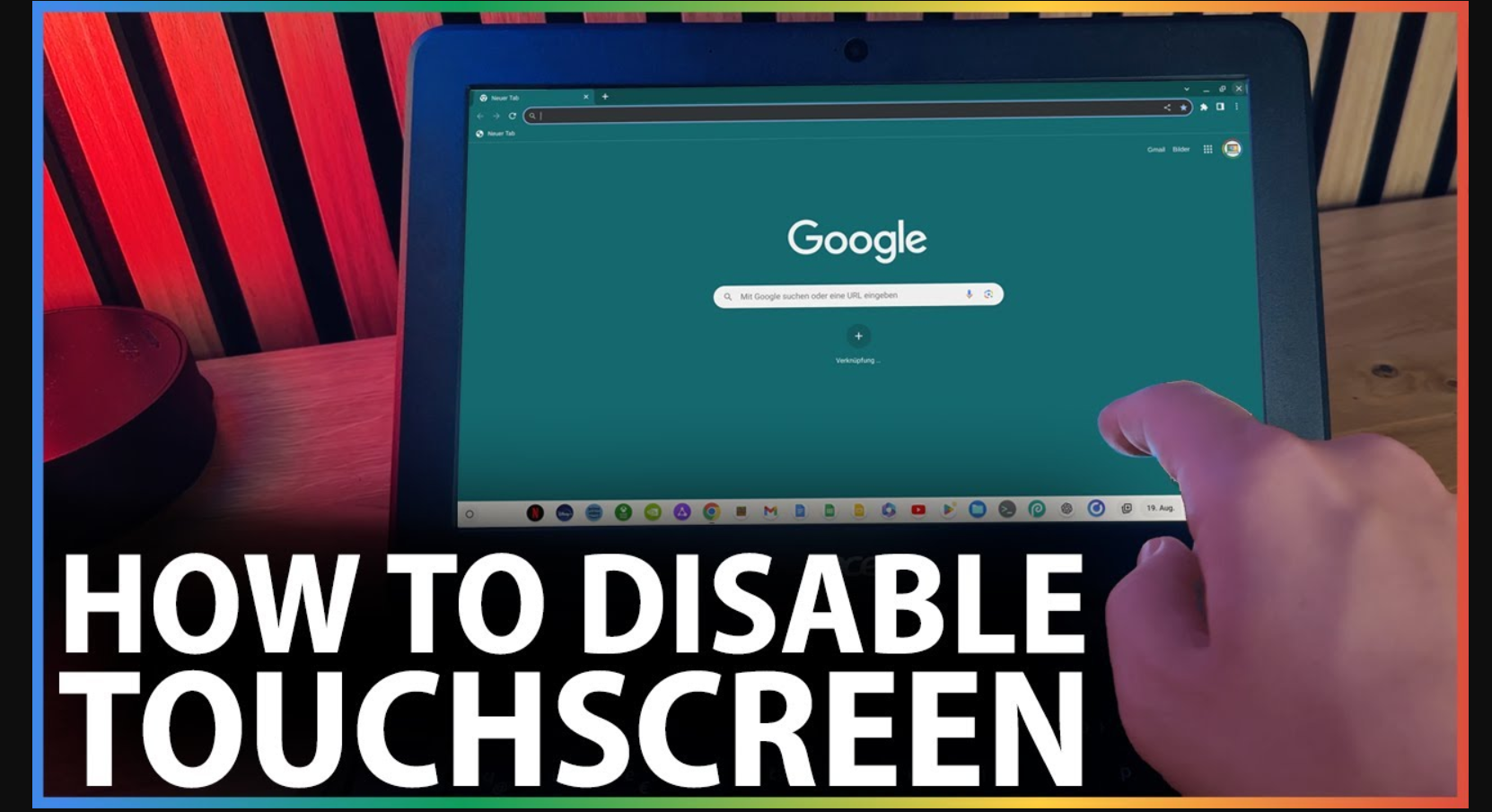
If you have ever tapped your Chromebook screen by mistake while typing, you know how annoying it can feel. If kids keep touching the screen or you just want fewer distractions, you are not alone.
Touchscreens can be helpful, but they are not always practical. When you learn how to disable the touchscreen on your Chromebook, you gain better control and a smoother experience.
This guide shows you exactly what to do in a simple and practical way.
Why You May Want to Turn Off the Touchscreen
Before you start, think about why you want to disable it. Many people do it for everyday reasons.
You may want to avoid accidental touches while typing.
You may want better focus during study or work.
You may want to stop kids from tapping the screen.
You may prefer using your Chromebook like a regular laptop.
You may want more control during presentations.
In many cases, you will find that using only the keyboard and trackpad feels easier.
What You Should Know Before You Start
You will not find a simple button in settings to turn off the touchscreen.
Instead, you will use a built in feature inside Google Chrome called Chrome flags. This method is safe, but you need to follow the steps carefully.
Method 1: Use Chrome Flags to Disable Touchscreen
This method works best on most Chromebooks and gives you full control.
Follow these steps
- Open the Chrome browser
- Type this in the address bar:
chrome://flags - Press Enter
- In the search box, type: debugging keyboard shortcuts
- Find the option called “Debugging keyboard shortcuts”
- Change it from Default to Enabled
- Click Restart
Use the Shortcut to Turn It Off
After your Chromebook restarts, you can control the touchscreen with a shortcut.
Press:
Search + Shift + T
When you press it:
Press once and you disable the touchscreen
Press again and you enable it
You can switch it on or off anytime you want.
Method 2: Use Accessibility Settings
This method does not fully turn off the touchscreen, but it can reduce problems.
Steps to try
- Open Settings
- Click Accessibility
- Check input and interaction options
This method works more like a partial fix, not a complete solution.
How You Know the Touchscreen Is Off
You will notice the change right away.
The screen will not respond to taps.
You will not scroll using touch.
You will use only the keyboard and trackpad.
If the screen still responds, press the shortcut again.
How You Turn the Touchscreen Back On
You can enable it again anytime.
Just press:
Search + Shift + T
Since it works like a toggle, you can switch between modes easily.
Problems You May Face and How to Fix Them
Sometimes things may not work right away. Here is what you can do.
If the shortcut does not work, make sure you enabled the flag and restart again.
If you cannot find the option, update your Chromebook to the latest version.
If the touchscreen still works, try the shortcut again and check your device settings.
When Turning Off the Touchscreen Helps You Most
From real use, you will notice the biggest difference in certain situations.
When you write long documents
When you attend online classes
When you use a mouse and keyboard
When you give presentations
When kids use the device
You will see fewer interruptions and better focus.
Things You Should Keep in Mind
This setting is not permanent.
Updates may reset your settings.
You may need to enable it again after updates.
Even with this, it remains the most useful method available.
Common Questions You May Have
Can you permanently disable the touchscreen?
No, there is no official permanent setting, but this method works well.
Is it safe to use Chrome flags?
Yes, if you only change known options like this one.
Will this work on every Chromebook?
It works on most touchscreen Chromebooks.
Will this improve performance?
Not much, but it improves usability and reduces distractions.
Can schools disable touchscreen on student devices?
Yes, they can use admin controls to manage this.
Final Thoughts
Disabling the touchscreen on your Chromebook may not seem obvious at first. Once you learn the shortcut, the process becomes very simple.
When you turn it off, you get better focus, fewer mistakes while typing, and more control over your device.
Sometimes, when you remove one feature, you actually create a better and smoother experience.